

Touch screen
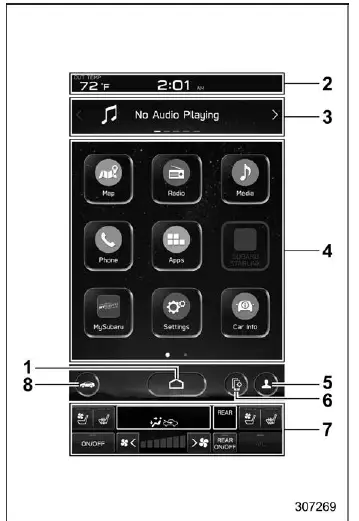
- HOME icon
- Status bar
- Information bar
- Main screen
- Driver profiles icon
- Manage device icon
- Climate control screen
- Car settings icon
In the Subaru Ascent, the advanced touch panel becomes fully operational when the ignition switch is set to the "ACC" or "ON" position. This responsive display serves as the central hub for controlling vehicle functions, multimedia systems, and comfort settings, offering a seamless and modern user experience.
Status bar
The status bar in the Subaru Ascent continuously shows essential information such as the current time and outside temperature, allowing the driver to stay informed at a glance without navigating through menus.
NOTE
- The outside temperature indicator reflects the ambient temperature near
the sensor. However, readings may be temporarily inaccurate or delayed under
certain conditions:
- When the vehicle is stationary or moving at low speeds
- During rapid environmental changes, such as entering or exiting tunnels or underground parking areas
- Immediately after starting the Subaru Ascent following a period of parking
- The temperature unit can be configured to display either Celsius (°C) or Fahrenheit (°F).
- The clock display format can be switched between 12-hour and 24-hour modes.
- Touching the clock area on the status bar opens the clock adjustment screen for quick configuration.
- For Bluetooth device management and additional connectivity features, refer to the navigation/audio Owner’s Manual.
Information bar
Within the Subaru Ascent, the information bar can be navigated by swiping or
by pressing
 or
or
 to cycle through available information widgets and display different content panels.
Audio screen:
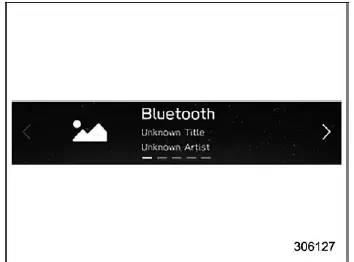
The audio screen displays the currently selected media source, including track, station, or streaming information, enabling intuitive control of the Subaru Ascent audio system. For detailed operation, consult the dedicated navigation/audio manual.
Navigation screen (models with navigation system):
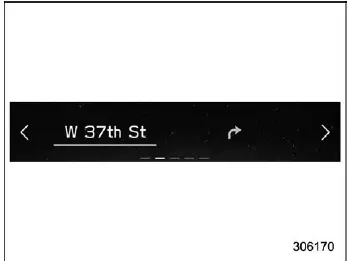
The navigation screen in the Subaru Ascent provides real-time route guidance, showing directions to the selected destination directly on the display.
NOTE
If no destination is set, the display will show compass direction, current street name, and applicable speed limit information, ensuring the driver still receives useful navigation context.
Favorite screen:
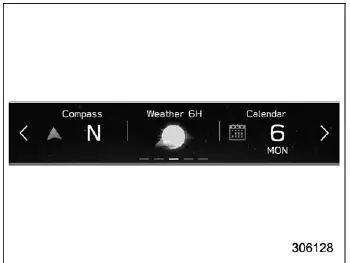
Favorite screen
The favorite screen in the Subaru Ascent allows the driver to display up to three customizable data fields, selected from a variety of available vehicle and environmental information options.
 Engine coolant temperature
 Engine oil temperature
 Average vehicle speed
 Accelerator opening ratio
 Vehicle posture
 Direction of the vehicle*1
 Weather information for the next three hours*2
 Weather information for the next six hours*2
 Posted speed limit of the road you are currently driving on*1
 Calendar
 Driver Monitoring System*1 information and the average fuel consumption of driver
 Nothing is displayed.
*1: If equipped
*2: Models with SiriusXM Satellite Radio
NOTE
Depending on the Subaru Ascent model and equipment level, some features or display items may not be available.
The content shown on the favorite screen can be freely adjusted, allowing drivers to prioritize the information most relevant to their driving style.
Weather information screen (if equipped):
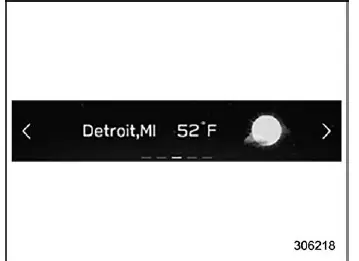
NOTE
- Weather information is displayed in the Subaru Ascent only when the
following conditions are met:
- The vehicle is equipped with a compatible audio and navigation system supporting SiriusXM satellite services.
- An active SiriusXM subscription is available.
- The weather forecast for the selected destination remains visible until a new destination is entered or the current destination is reached.
- Depending on signal reception timing, weather updates may be delayed.
The Subaru Ascent display system is built to provide a smooth and intuitive interaction experience, ensuring that important driving, navigation, and environmental data are always accessible in a clear and user-friendly format.
X-MODE screen:
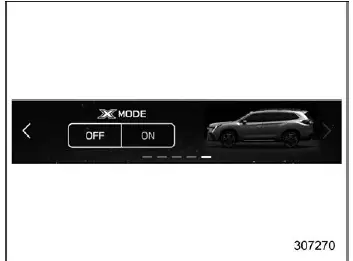
Models with 1 mode
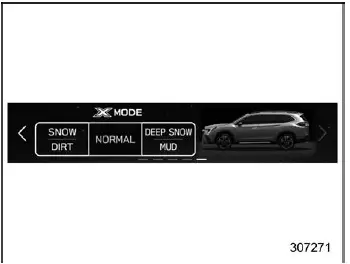
Models with 2 modes
The Subaru Ascent X-MODE screen provides essential off-road and traction-related information directly on the display. This system is engineered to enhance vehicle stability and control in challenging conditions such as snow, mud, or steep terrain.
Through the center information display, drivers of the Subaru Ascent can also switch between available X-MODE settings, selecting the most suitable mode depending on the current driving environment.
Main screen
The main screen of the Subaru Ascent serves as the primary access point for various multimedia and vehicle-related functions. For detailed operation of the following menu items, refer to the dedicated navigation/audio Owner’s Manual.
- Radio
- Media
- Phone
- Map
- Apps
- My Subaru
- SUBARU STARLINK
- Add Shortcut
Auto Vehicle Hold icon
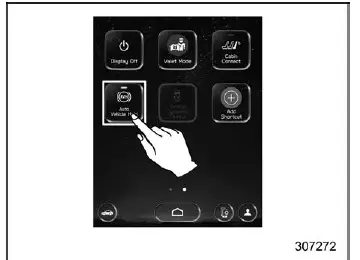
To activate or deactivate the Auto Vehicle Hold function in the Subaru Ascent, simply touch the corresponding icon on the display.
When this function is turned off, the Auto Vehicle Hold indicator on both the combination meter and the center information display will switch off simultaneously, clearly indicating that the system is inactive.
Vehicle Dynamics Control icon
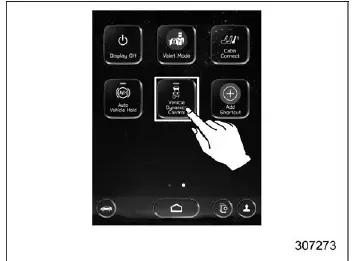
The Vehicle Dynamics Control system in the Subaru Ascent can be enabled or disabled by touching its icon on the display interface.
If the system is switched off while the engine is running, the corresponding Vehicle Dynamics Control OFF indicator will illuminate on the combination meter, confirming deactivation.
At the same time, the icon on the center information display will turn off, visually reinforcing the system status. When reactivated, both the indicator light and the icon will return to their active state.
The Vehicle Dynamics Control system plays a key role in maintaining stability and traction, so it is recommended to use this function appropriately based on driving conditions.
Cabin Connect
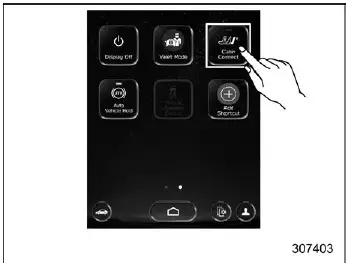
Display Off
Activation of the display off mode:
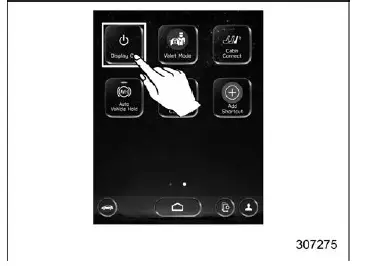
1. Touch "Display Off" on the Subaru Ascent screen to temporarily disable the display output.
Deactivation of the display off mode:
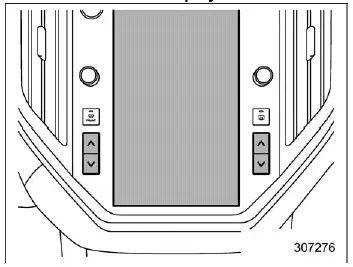
1. Touch the screen or press any temperature control button to reactivate the display.
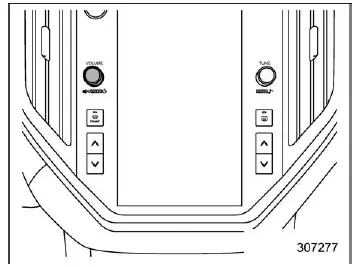
2. Alternatively, press and hold the volume knob to restore the screen functionality.
Car settings icon
Touch
 to access configurable settings available while driving the Subaru Ascent.
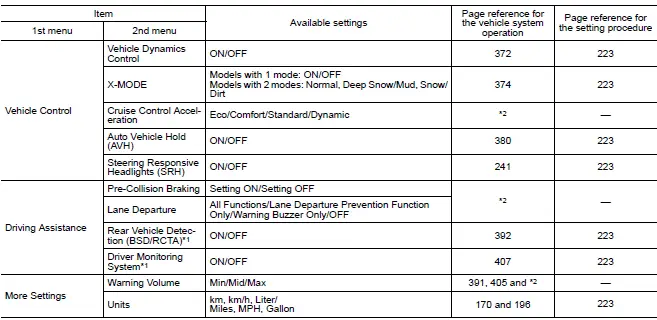
*1: If equipped
*2: For details about the EyeSight system, refer to the Owner's Manual supplement
for the EyeSight system.
Driver profiles icon
Touch
 (driver profiles icon) to review or switch driver-specific settings and preferences
within the Subaru Ascent system.
(driver profiles icon) to review or switch driver-specific settings and preferences
within the Subaru Ascent system.
HOME icon
Touch
 (HOME) to instantly return to the main menu screen.
Climate control screen
The Subaru Ascent climate control interface provides a comprehensive overview of current HVAC settings, allowing precise adjustment of cabin comfort conditions.
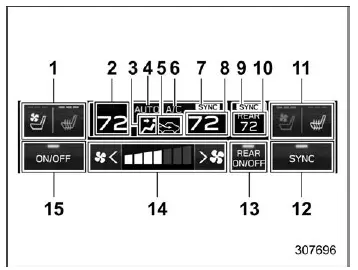
- Driver's seat heater/ventilation icon (if equipped)
- Set temperature indicator (driver's side)
- Airflow mode
- Climate control mode
- Air inlet selection
- Air conditioner ON indicator
- SYNC mode indicator
- Set temperature indicator (passenger's side)
- REAR SYNC mode indicator
- REAR set temperature
- Front passenger's seat heater/ventilation icon (if equipped)
- Customizable icon
- REAR Climate control ON/OFF icon
- Fan speed control
- Climate control ON/OFF icon
When adjusting climate settings in the Subaru Ascent, the system automatically switches the display to the climate control screen, ensuring that all changes are clearly visible and easy to manage.
The Subaru Ascent interface combines functionality with clarity, allowing drivers to control complex vehicle systems through a clean and responsive layout that feels natural in everyday use.
Related manual topics
Reverse Automatic Braking (RAB) system
The Reverse Automatic Braking (RAB) system in the Subaru Ascent is an advanced
safety feature developed to help minimize the risk of collisions when reversing.
By continuously monitoring the area behind the vehicle, the Subaru Ascent can detect
obstacles such as walls or stationary objects and ...
Coat hook
The Subaru Ascent includes a coat hook integrated into the rear passenger assist
grip, offering a practical place to hang clothing items.
WARNING
Follow these safety guidelines when using the coat hook in the Subaru Ascent.
Do not use rigid or pointed hangers. Always hang garments di ...